AI for Small Business: The First 3 Things to Automate (No Tech Skills Required)
If you've heard "AI can save you hours every week" many times but you're still not sure what to actually do, this guide is for you.
Not because AI is hard. Because starting in the wrong place is the fastest way to waste a week and conclude that AI isn't for you. The order matters more than the tools.
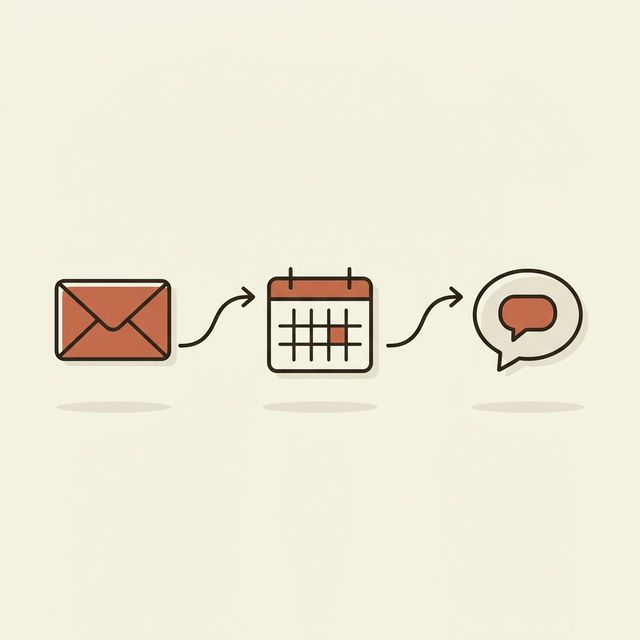
This guide gives you the first 3 automations to build, in a sensible order, with the steps and kinds of tools to get there. Each one is a small project you can start in a single sitting.
Key Takeaways
- Many small business owners lose time to email, scheduling, and answering the same questions again and again
- These are also among the easiest things to automate, so start here rather than with "advanced" workflows
- You do not need to know how to code. The tools in this guide are built for non-technical users.
- The biggest mistake: trying to automate too much at once. One thing at a time, always.
What Is Business Automation?
Business automation means using software to do tasks that you or your team currently do by hand: replying to common emails, booking appointments, answering customers' common questions, sending follow-up reminders.
AI automation uses artificial intelligence for tasks that involve understanding language, not just following fixed rules. It can read an email, understand what it's asking, and write a relevant reply, not just file it in a folder.
The goal: fewer interruptions, less time on low-value work, and more time for the decisions only you can make.
Why Most Business Owners Get Stuck Before They Start
The most common mistake is starting with something ambitious: "I want to automate my entire sales process."
That's a big project, and it often fails. You conclude AI is overhyped and go back to doing everything by hand.
The better approach is the opposite: pick the smallest, most annoying task and automate that first. Build your confidence. Then expand.
Here's a useful question: What are the 3 tasks you do most often that require almost no original thinking?
For many small business owners, the answer is some version of: reply to routine emails, schedule meetings, and answer the same customer questions over and over.
Those are your first 3 automations.
Automation #1 — Email Templates and Auto-Responses
Who this is for: Anyone who answers lots of emails with the same kinds of questions.
The problem: Much of your inbox is not urgent, not complex, and not personal. "What are your hours?" emails. Messages that don't need a reply. Follow-up reminders you keep forgetting to send. These eat your best hours.
The solution: Use AI to help you write reusable replies, and later to sort incoming emails and draft responses for the simple ones.
Start here: the manual version (saves time today):
- Open your "Sent" folder (the emails you've already sent) and look at your last 50 emails. Identify your top 5 repeating types (for example "hours/location", "pricing", "appointment reschedule", "follow-up", "acknowledgment").
- Use an AI assistant such as Claude or ChatGPT to write your templates. A "prompt" is just the instruction you type into the chat box; copy this one and replace the parts in square brackets:
I run a [type of business]. I frequently receive emails asking about:
1. [Category 1]
2. [Category 2]
3. [Category 3]

Write a warm, professional, concise response template for each. Max 3 sentences. Sound human. Use [VARIABLE] placeholders where I'll fill in specific details.
- Save these as templates. Gmail has a "Templates" feature and Outlook has "Quick Parts"; search for either name in your email program's Help for the current steps. If you prefer, keep them in a simple document and copy and paste.
- Now routine replies take far less effort than typing each one from scratch.
The fully automated version (an automation service such as Make.com, plus an AI service such as Claude):
Once the manual version is helping, you can go further. When a new email arrives, the automation service sends it to the AI, which sorts it, and the service can prepare a reply from your template and label anything needing real thought as "Needs Me." It takes more setup and a bit of learning, so take it slowly, check it carefully, and ask a tech-savvy friend to look over it if you can.
For a longer walk-through, see our guide How to Automate Your Business Email with AI.
Automation #2 — Appointment and Meeting Scheduling
Who this is for: Anyone who schedules several outside meetings each week.
The problem: "When works for you?" is an expensive question in a small business. Booking even a short meeting can take many back-and-forth emails.
The solution: A scheduling tool connected to your calendar. Instead of "When works for you?", you send: "Here's my calendar: grab a time that works. [link]" Done, with no back-and-forth.
How to set it up:
- Pick a scheduling tool. Calendly and Cal.com are two well-known examples; look at each one's website for its current plans and pricing.
- Connect it to your calendar (Google Calendar or Outlook). The tool will walk you through this when you sign up.
- Set your availability rules: for example, "External meetings: Tuesday to Thursday, 10am to 4pm. Maximum 3 per day. A 15-minute break between meetings."
- Add your booking link to your email signature (the text that appears at the bottom of every email you send): "Schedule time with me: [your link]"
- From now on, send the link instead of asking "When works?"
Optional extra: Many scheduling tools let you ask the other person a few questions when they book, so you arrive at each call already knowing what they want to discuss.
Clients often appreciate this one too: being able to book a time in the evening without waiting for a reply feels like good service.
Automation #3 — Customer FAQ Chatbot
Who this is for: Any business with a website where customers ask the same questions repeatedly.
The problem: Your team spends real time answering questions that are already answered on your website or that have the same answer every time. "Do you offer X?" "What's your turnaround time?" "How does billing work?" These don't need a person. They need the information to be easy to find.
The solution: A chatbot on your website that answers your most common questions at any hour, with no one on your team involved. (A "chatbot" is a small chat window on a web page where visitors type a question and get an automatic answer.)
How to set it up:
- Write down your most common customer questions, with the answers. If you don't have them written, use this prompt in an AI assistant:
I run a [type of business]. My customers frequently ask about:
[list 5-10 topics]

Write 20 FAQ questions and clear, professional answers for each. Keep answers under 3 sentences. Friendly, direct tone.
- Choose a chatbot tool. Tidio and Intercom are two examples; check each one's website for current plans and pricing.
- In the tool's dashboard, find where it stores the information the chatbot uses (often called a "knowledge base") and paste in your questions and answers.
- The tool will give you a small piece of code, or a plugin if your website runs on a platform such as WordPress or Squarespace. Follow its instructions to add it to your website. If you're not sure how, ask whoever manages your website to do this step; it usually takes only a few minutes.
- Test it: ask it your own questions, and have a friend try it too.
The most important rule for chatbots: Give it one clear job. Answer your common questions, and if it can't help, hand the visitor to a human. A focused chatbot that does one thing well beats an ambitious one that confuses your customers.
The Right Order to Build These
Build 1 first: Email templates. Little to no cost, little setup risk, and you can use them today.
Build 2 next: A scheduling link. It removes a lot of back-and-forth and takes little setup.
Build 3 last: The chatbot. It takes a bit more setup, but once it's running it needs little attention. It's most useful for businesses whose websites get regular visitors.
Once all three are working, good next steps are often automated invoice reminders, client onboarding messages, and internal project status updates.
What NOT to Automate First
- Anything requiring real judgment (pricing negotiations, handling complaints, sales conversations)
- Anything that touches money directly without human review
- Your most important client relationships: automate the routine, keep the VIP stuff personal
- Anything you don't already do consistently yourself: automation repeats an existing process, it doesn't create one
What Will This Cost?
It depends on which tools you choose, and plans and prices change often, so check each tool's own website before deciding. Here is the general picture:
| Automation | What you use | Cost |
|---|---|---|
| Email templates | The templates feature in Gmail or Outlook, or a simple document | No extra tool needed |
| Email AI automation | An automation service plus an AI service | Varies; see each company's pricing page |
| Scheduling | A scheduling tool such as Calendly or Cal.com | Varies; many offer a free plan |
| Chatbot | A chatbot tool such as Tidio or Intercom | Varies; many offer a free plan |
Our advice: begin with the free options, and only pay once you've proven an automation is worth it.
Frequently Asked Questions
Do I need to know how to code?
No. The tools in this guide are designed for non-technical users, and the email template approach needs no technical skill at all. Some steps (like adding a chatbot to your website) are easier with a little help, and that's fine.
Will customers be annoyed by automation?
Only if it's robotic or unhelpful. A scheduling link is faster and more convenient than a string of emails, and a chatbot that answers a question right away is better than waiting hours for a reply. The test: does the automation improve the experience for the customer? If yes, use it. If no, don't.
What if the AI sends a wrong reply?
For email replies, send yourself a copy (a "BCC") of everything the automation sends for the first few weeks, so you can review it. For chatbots, always offer a clear way to reach a human. Never leave anything fully automatic without a review period.
How do I know if automation is actually saving me time?
Track it. Before automating, note roughly how many minutes a day you spend on that task for one week. After a couple of weeks of using the automation, note it again and compare.
What if I automate something and it breaks?
Start simple. Email templates are just saved text, so there's little to break. Scheduling links just connect to your calendar. Chatbots work best when you give them a limited job. Build the simplest version first, confirm it works reliably, then add complexity.
The first automation is the hardest. After that, your confidence grows. Start with email templates this afternoon.
Want a guided way to start? Our free guide Your First AI Win walks you through using AI on one real task, and The Business AI Audit helps you find where AI fits in your business.