How to Automate Your Business Email with AI (No Code, No IT Team)
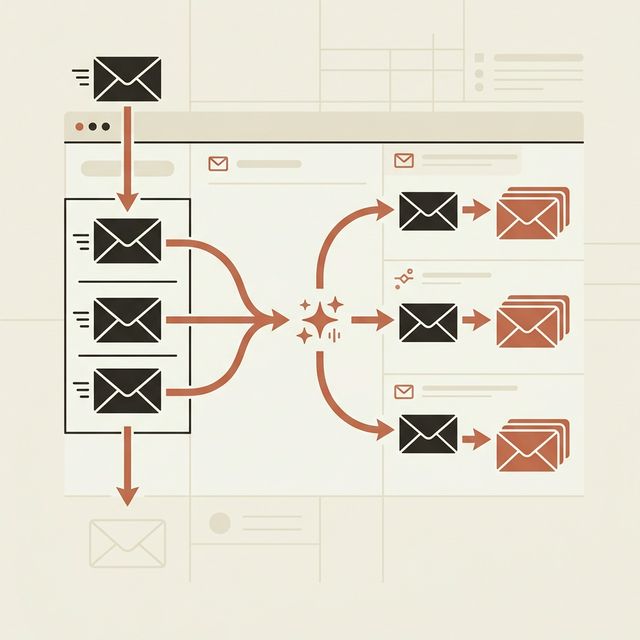
Most business owners spend far too much of the day on email. A lot of it is answering the same handful of questions, sending follow-ups that were supposed to go out days ago, and acknowledging messages that didn't need a real reply in the first place.
This guide shows you how to take back some of that time by letting AI handle the routine work (the common questions, the follow-ups, the acknowledgments) while you stay in the loop for everything that actually needs you.
No coding. No IT team. You can start the first version today, with tools you already have.
Key Takeaways
- Most business email falls into a few repeating types; once you identify yours, many replies can be handled with a saved template
- The manual template approach saves time immediately, with no new tools
- The automated version (Gmail + an automation service such as Make.com + an AI assistant such as Claude) can handle routine types for you
- The golden rule: automate the routine, keep the relationship; your best clients still hear from you
- Start small, check the results, then expand
What Is Email Automation?
Email automation means using software to send pre-written responses, sort incoming emails, or draft replies automatically, without typing each one by hand.
AI email automation goes further. Instead of rigid rules ("if the subject line contains 'invoice', send template X"), it uses AI to read the email, work out what the person is asking, and write a fitting reply.
The difference matters because your inbox isn't full of identical emails. It's full of the same types of emails, each worded differently. AI copes with the variation. Simple rules don't.
Why Email Is a Good First Automation to Build
Three reasons:
1. It takes a lot of time. For many owners, inbox management is one of the biggest daily time costs.
2. Most email doesn't require your judgment. "What are your hours?" "Can I reschedule?" "Is X included in my plan?" These have a correct answer, and it's the same every time. You shouldn't have to write these from scratch.
3. The failure mode is low-risk. If an AI-drafted reply is slightly off, the customer replies and you fix it. That's very different from automating your invoices or contracts, where mistakes cost money. Email is a safe place to build your automation skills.
Step 1 — Audit Your Inbox
Open your "Sent" folder (the folder holding emails you have already sent) and look at your last 50 emails. Sort what you sent into groups:
| Category | Example | How many per week |
|---|---|---|
| Common question: hours/location | "We're open Mon-Fri 9-6" | ___ |
| Common question: pricing/services | "Our plans start at $X" | ___ |
| Appointment requests | "Sure, here's my scheduling link" | ___ |
| Outgoing follow-ups | "Just circling back on my last email" | ___ |
| Acknowledgments | "Got it, thanks for letting me know" | ___ |
| Needs a real reply | Actual conversations requiring judgment | ___ |
Count each group. The groups with the highest numbers are your targets. The "Needs a real reply" group stays with you, always.
Step 2 — Write Your Response Templates
A template is simply a reply you write once and reuse. For each high-volume group, write one or two. Not rigid scripts: warm, professional, and natural.
Use this prompt in an AI assistant such as Claude or ChatGPT. (A "prompt" is just the instruction you type to the AI. Copy it, replace the parts in square brackets, and paste it into the chat box.)
I run a [type of business]. My customers frequently email me about:
1. [Category 1 — e.g., hours and location]
2. [Category 2 — e.g., pricing and what's included]
3. [Category 3 — e.g., rescheduling appointments]
4. [Category 4 — e.g., status updates on their order/project]

Write a professional, warm, and concise email response template for each category. Keep each template under 3 sentences. Sound human, not corporate. Use [VARIABLE] placeholders where I need to fill in specific details.
The assistant will return draft templates within moments. Read them. Change a few words so they sound like you. Save them somewhere you can find them, such as a document on your computer.
This is your response library. Everything that follows builds from here.
Step 3 — Use the Manual Version First
Before building any automation, use your templates by hand as saved replies. Both Gmail and Outlook have a built-in way to do this:
In Gmail:
Gmail has a "Templates" feature (sometimes called "canned responses"). It may need to be switched on in Gmail's settings first. Search "Gmail templates" in Gmail's Help for the current steps, because menus change from time to time.
In Outlook:
Outlook has a feature called "Quick Parts" that stores text you reuse. Search "Outlook Quick Parts" in Outlook's Help for the current steps.
Instead of typing a new reply every time, you insert a template, adjust it if needed, and send.
This alone can save you real time. No new tools, no setup risk, no monthly cost.
Run this manual version for a week. Notice how much time it saves you. Then, if you want to go further, build the automated version.
Step 4 — Build the Automated Version (Optional)
Now you're removing yourself from the loop for routine email types. AI reads the email, sorts it, and either sends the right template or drafts a reply for you to approve.
If you have never used an automation service, expect to spend some time learning it. Take it slowly, and ask a tech-savvy friend or colleague to look over your setup if you can.
The pieces:
- Gmail (your inbox)
- An automation service such as Make.com, which connects apps to each other without code (check its website for current plans and pricing)
- An AI service such as Claude, which does the reading and sorting (check its website for current pricing)
The workflow logic:
- A new email arrives in Gmail.
- The automation service notices it ("trigger: new email received").
- The automation service sends the email text to the AI with an instruction like: "Classify this email as exactly one of these categories: FAQ-hours, FAQ-pricing, Appointment-request, Follow-up-acknowledgment, or Needs-Human-Reply. Return only the category name, nothing else."
- The automation service reads the category the AI returns and takes the matching action: for the routine categories, it saves a draft reply using the matching template (or sends it, once you trust it); for "Needs-Human-Reply", it does nothing except add a label such as "Needs Me" to the email.
- Every morning you review the "Needs Me" label and your saved drafts, and handle those personally.
Our advice: start with drafts only. Let the automation prepare replies, and you review and send each one. Once you've watched it work well for a while, you can decide whether to let it send some routine replies on its own.
Step 5 — Automate Your Follow-Ups
The most painful email problem for many owners isn't incoming email. It's the outgoing follow-up that gets lost.
"I sent a proposal last week. I don't want to be pushy, but I need an answer. Did they even see it?"
Simple version (no new tools):
When you send an email that needs a reply, use Gmail's "Snooze" feature on it, which hides the message and brings it back to the top of your inbox at the date and time you choose. When it comes back, send your follow-up template.
Automated version:
Create a Gmail label (a tag you attach to emails) called "Awaiting Reply" and apply it to any sent email that needs a response. Then build an automation: if an email with that label has had no reply after a number of days you choose, create a draft follow-up and place it in your Drafts folder. You review and send it.
This helps make sure a follow-up doesn't get lost simply because it fell off your radar.
What to Keep Human, Always
Not everything should be automated. These always stay personal:
- New inquiries from high-value prospects: your first impression sets the tone for the whole relationship
- Complaints and upset clients: tone and empathy cannot be templated
- Complex negotiations: pricing, scope, contract terms
- Relationships you're actively building: if someone matters to your business, they hear from you
The rule is simple: automate the routine, keep the relationship. If an email is from someone who affects your revenue or reputation, it gets your full attention. Everything else is a candidate for automation.
Frequently Asked Questions
Will clients know they're getting an AI-drafted reply?
If your templates are written in your voice, replies will read like you. The goal isn't to deceive anyone; it's to respond faster and more consistently than you could by hand. Review every draft before it goes out (at least at first). If a draft doesn't fit the situation, edit it. You're always in control.
What if the AI misclassifies an email and sends the wrong template?
That's why we suggest drafts first. If the AI isn't sure of the category, send the email to your "Needs Me" label by default. For any automatic replies, send yourself a copy (a "BCC") for the first few weeks so you can catch errors. Give the automation more freedom only after you've confirmed it's accurate with your real email.
Does this work with Outlook and other email platforms?
Automation services such as Make.com list the email providers they connect to on their websites; check that yours is supported before you start. The basic logic is the same whichever email service you use.
How much does the full automated setup cost?
It depends on which services you choose and how much email you handle. Look at the current plans and pricing on each service's own website, and start with any free plan before paying for anything. The manual template version in Steps 1 to 3 costs nothing.
Can I apply this to my team's email too, not just mine?
Often, yes. You write the templates once and everyone on the team can use them. Check what your chosen automation service supports for multiple inboxes.
Is my email content safe when it passes through an AI service?
Before sending customer emails to any AI service, read that company's privacy policy and data-use terms on its own website, and decide whether you're comfortable with them. For highly sensitive messages (legal, medical, financial), keep them out of the automation entirely, for example by excluding those senders from your workflow.
Start with the inbox audit today. Looking through your sent folder will show you where your biggest time savings are hiding. Then write your first few templates.
Want a guided way to try AI on one real task? Our free guide Your First AI Win walks you through it, and The Business AI Audit helps you spot where AI fits in your business.